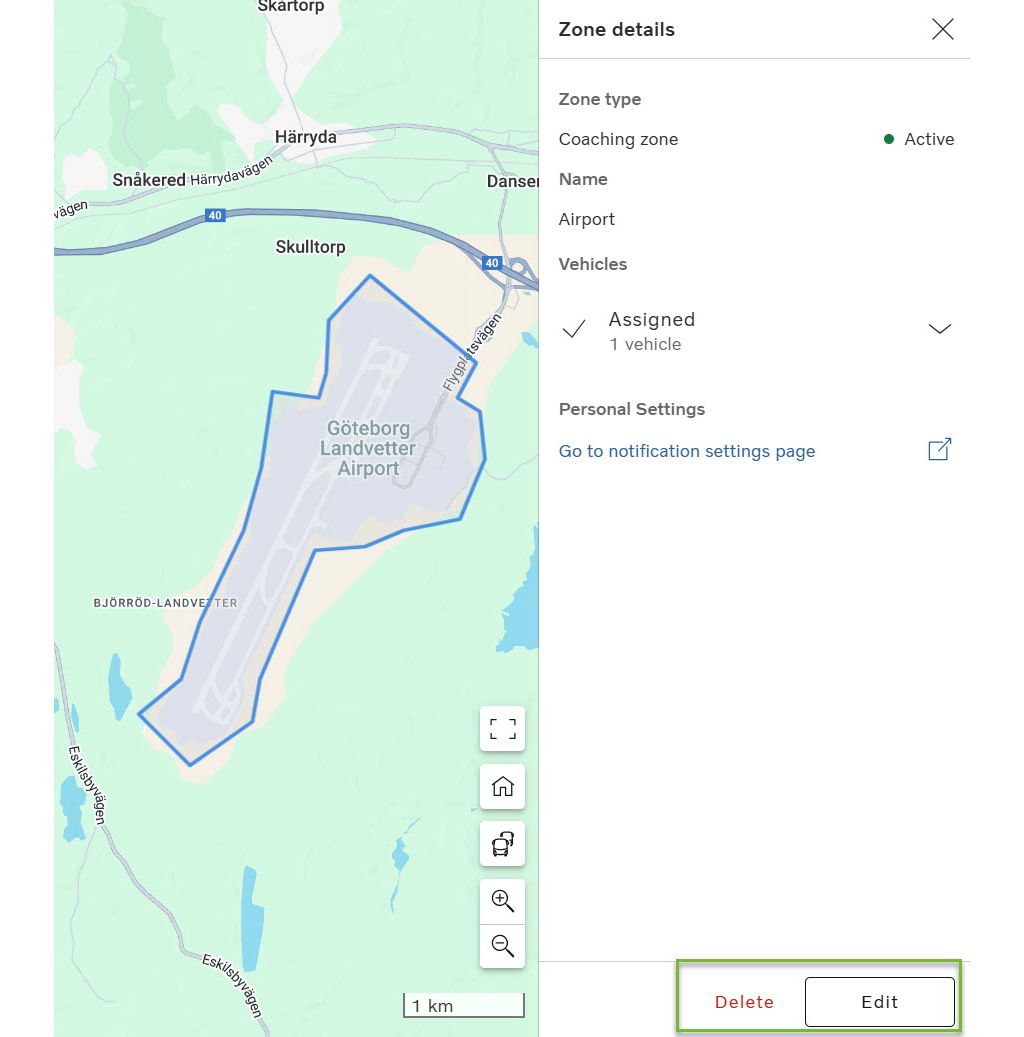
Your zone management just became quicker and more intuitive.
Zones can now be edited simply by clicking on their shape in the map view. The zone details appear on the right, allowing for quick edits or deletions.
Furthermore, zones can now be created by right-clicking anywhere on the map. In the menu that opens, select New Zone, and select the type and shape you want.
These changes give you faster zone management, reducing administrative effort and minimizing errors.
Zones are now locked for maximum 2 minutes while syncing with vehicles. After that, you can edit or delete them, even if some vehicles are still pending. This will reduce your downtime and speed up zone assignment when managing zones, especially in dynamic fleet environments.
We have also improved the overview of zones in your fleet with new statuses.
For each zone, you will see any of the statuses Assigned to vehicles (if all vehicles are assigned), Assigned to routes (if the zone is linked to routes), No assigned vehicles or Inactive
Additionally, the new tags Failed and Pending are added for zones. If just one of the vehicles in a zone has the status Pending or Failed, these tags will replace the zone status. If both statuses are present in a zone, both are shown together. These tags let you quickly target that action might be needed.
When you open a zone, you will see the different statuses of the vehicles assigned to the zone, so you can get a clear picture of which vehicles that need action.
Note that zones are only available if vehicles in your fleet are subscribed to any of Volvo Buses zone management services.
Read on to discover a more intuitive Position History, and better filtering of vehicles.
In Position History, you will now only see the location of the vehicle you are currently analyzing. Should you wish to view other vehicles, you have a toggle to show current position of all assets in the map.
This enhancement lets you focus on what important – the vehicle you are currently analyzing in Position History – and will help you avoid distraction from other vehicles moving on the map.
Position History now supports keyboard navigation, improved event highlighting, and redesigned event markers.
Hovering or clicking on events highlights them across all views (map, graph, list), and navigation is more responsive. When you click on an event in the map or the Data view, it will be marked in black, and when you hover over an event, it will enlarge its icon and show in grey.
This update speeds up your event analysis, helping you quickly understand vehicle routes and incidents.
The Map tool now supports searching for all your assets, including those that are currently hidden from view. When you search for an asset that has been hidden using the Hide/show assets feature, whether you use the search option in the left-hand menu or the search feature on the map, the hidden asset will now appear in the search results. A note will indicate that the asset is hidden. This will give you better visibility of your full fleet, by still allowing for focused monitoring of selected vehicles in the map.
A new settings option lets you choose whether fault code statuses are visible in the Map tool. Hiding fault codes removes them from vehicle details and the vehicle list, decluttering your interface and letting you focus on the most relevant information for your operations.